
Account for scrapped goods
It’s essential to strike a balance between having sufficient stock on hand to meet demand while avoiding overpurchasing. When working with perishable products, or when inventoried goods have defects that prevent the product from being sold, occasionally, products must be scrapped and removed from inventory. It’s important to account for these losses in the Profit and Loss report.
Generally, follow this process to account for scrapped goods in the Profit and Loss report:
Enable settings
To ensure scrapped goods can be seen in the Profit and Loss report, open . In the Warehouse section, enable Storage Locations.
Configure the product category
Next, configure the product category. Open . Open or create a product category.
Next, set the Costing Method to either First In First Out (FIFO) or Average Cost (AVCO):
First In First Out (FIFO): Inventory is valued, and the cost of goods sold (COGS) is calculated by assuming the oldest items purchased are the first ones sold, tracking costs by specific receipt lots. It’s a precise method for fluctuating costs, and requires tracking units by their entry time (load/serial numbers) for accurate removal from stock.
Average Cost (AVCO): Inventory value is calculated by dynamically averaging the cost of all units in stock, updating with each new purchase or manufacturing receipt to reflect fluctuating prices, making it ideal for varied vendor costs, with the system automatically recalculating the unit cost and value for assets and COGS. Odoo handles the math, adjusting the average cost automatically as products are bought or sold, but doesn’t change it when products sell, only updating when new stock arrives at a different price.
Next, set the Inventory Valuation field to Perpetual (at invoicing). This setting ensures that real-time journal entries are created in the Accounting app whenever stock enters or leaves the company’s warehouse.
Set up a scrap location and its scrap journal
Next, you must create or edit an existing scrap location. Open . Open an existing location or create a new one by clicking New.
Note
By default, the Locations list is filtered to show only internal locations. Remove this filter to view all locations, including Inventory Loss locations.
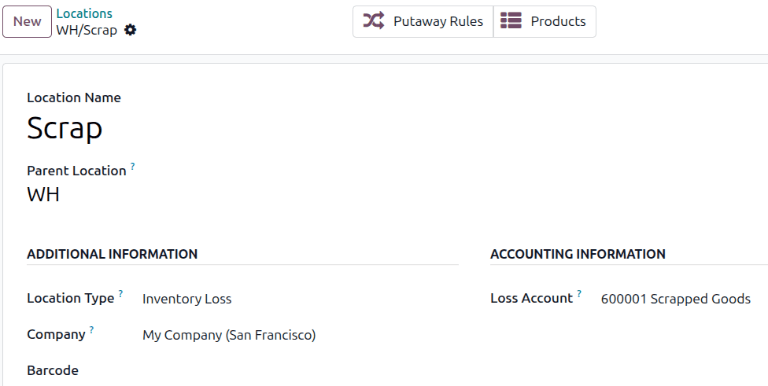
Update the Location Type field to select Inventory Loss.
Specify a Loss Account by selecting the account used for scrapped goods.
Example
The WH/Scrap location is an Inventory Loss location that uses the 600001 Scrapped
Goods journal as its Loss Account.
Scrap products
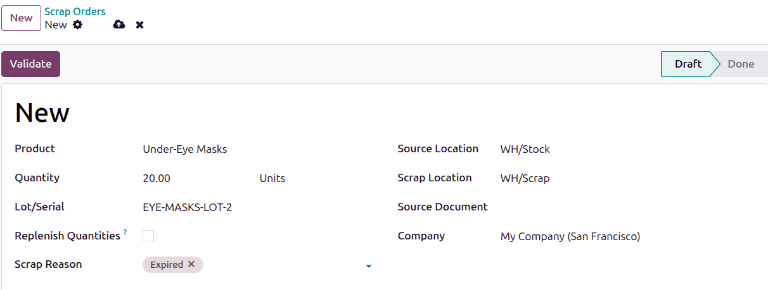
After the product category and location are set up, products can be scrapped. Be sure to select the scrap location in the Scrap Location field.
Example
20 units of Under-Eye Masks are scrapped to WH/Scrap.
View scrapped products in the Profit and Loss report
After products have been scrapped to the correct scrap location, view items scrapped to it in the Profit and Loss report. Open . To view the scrap order in the report, under the Gross Profit section, expand the Expense category. Search for the scrap journal in the list and click the (vertical ellipsis) icon next to the scrap account and select General Ledger.
Example
$100 worth of Under-Eye Masks appear as a debit in the Profit and Loss’ General Ledger.

See also