
Reassign lot/serial numbers
Changing a product’s tracking settings to use lots or serial numbers, after storing products in Odoo without them, can lead to inconsistent records. Follow this documentation to learn how to use an inventory adjustment to assign lot or serial numbers to products that were not originally assigned lots.
Note
This document outlines the process of using two inventory adjustments: one to remove incorrect records without lot numbers, and another to save the quantities with the lot numbers.
Change product tracking and perform inventory adjustments
To change the product’s settings to track by lots or serial numbers, begin by navigating to , and select the intended product.
Next, change the Track Inventory setting to By Lots or By Unique Serial Number.
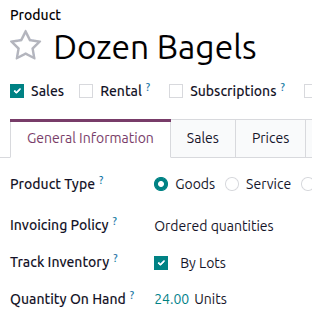
Click the Quantity On Hand value. The Locations page for the product opens.
In the Inventoried Quantity column, change the value to zero.
Note
If the product is stored in multiple locations, make sure the total on hand quantity at all locations is zero.

Click the New button to add the products back into the inventory. Specify a Lot/Serial Number and the Inventoried Quantity.

Tip
To find the original quantity, and adjust the Inventoried Quantity accordingly, after assigning a new lot or serial number, click the History button on the far-right.

The inventory adjustment that changed the on-hand quantity to zero is displayed in the Quantity field.
