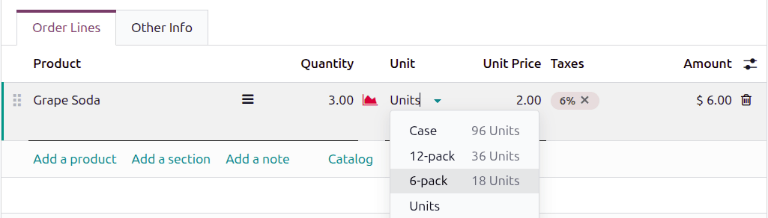
Packaging
In Odoo Inventory, packaging refers to disposable containers holding multiple units of a specific product.
For example, different packages for cans of soda, such as a 6-pack, a 12-pack, or a case of 36, must be configured on the individual product form. This is because packagings are product specific, not generic.
Tip
Packaging can be used in conjunction with Odoo Barcode. When receiving products from suppliers, scanning the packaging barcode automatically adds the number of units in the packaging to the internal count of the product.
Configuration
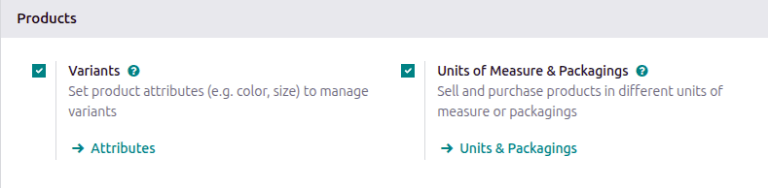
To use packagings, navigate to . Then, under the Products heading, enable the Units of Measure & Packagings feature, and click Save.
Create packaging
Packagings can be created directly on the product form, or from the Units & Packagings page.
From product form
Create packagings on a product form by going to , and select the desired product.
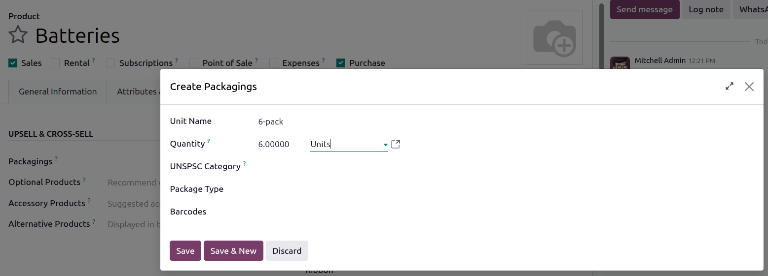
To specify a sales packaging, open the Sales tab, then specify Packagings in the Upsell & Cross-Sell section. Specify existing packagings or create new ones by clicking Create and edit. When Create and edit is clicked, a Create Packagings box opens, where information about the packaging can be specified:
Unit Name (required): name of packaging that appears on sales/purchase orders as a packaging option for the product.
Quantity (required): amount of product in the packaging.
Reference Unit (required): measurement unit for quantifying the product.
Package Type: package type used to set custom dimensions and limits. See package type to learn more.
Barcodes: identifier for tracing packaging in stock moves or pickings, using the Barcode app. Leave blank if not in use.
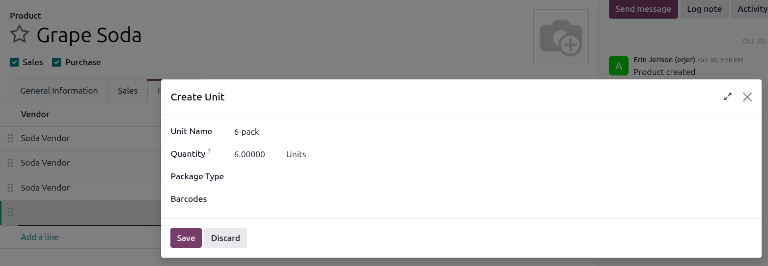
To specify a purchase packaging for a vendor, open the Purchase tab, then add a vendor. Update the Unit field to specify a purchase packaging for that vendor. Specify existing packagings here, or create new ones by clicking Create and edit. When Create and edit is clicked, the Create Unit box opens. The fields in this box are the same as for the Create Packagings box above.
Example
To create a purchase packaging type for six units of the product, Grape Soda, begin by clicking
Add a line in the Purchase tab. Specify a Vendor. Specify
6-pack in the Unit field, then click Create and edit. In the
Create Unit box, specify a quantity and reference unit (in this case, 6 Units),
then click Save. Repeat this process for additional packagings.
From units & packagings page
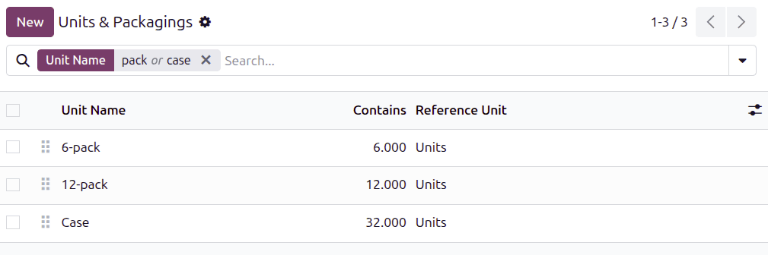
To view all packagings that have been created, go to . Doing so reveals the Units & Packagings page with a complete list of all packagings that have been created for all products. Create new packagings by clicking New.
Example
Two soda products, Grape Soda and Diet Coke, have three types of packagings configured. On
the Units & Packagings page, each product can be sold as a 6-Pack that contains 6
products, as a 12-Pack of 12 products, or as a Case of 32 products.
Partial reservation
After completing the packaging setup, packagings can be reserved in full or partial quantities for outgoing shipments. Partial packaging flexibility expedites order fulfillment by allowing the immediate shipment of available items, while awaiting the rest.
To configure packaging reservation methods, go to . Then, click New, or select the desired product category.
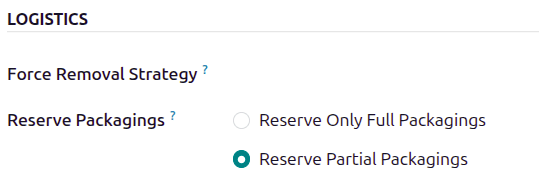
On the product category’s form, in the Logistics section, Reserve Packagings can be set to Reserve Only Full Packagings or Reserve Partial Packagings.
Important
To see the Reserve Packaging field, the Product Packaging feature must be enabled. To enable this feature, go to , scroll to the Products section, tick the Product Packagings checkbox, and click Save.
Example
To better evaluate the options based on business needs, consider the following example:
a product is sold in twelve units per packaging.
an order demands two packagings.
there are only twenty-two units in stock.
When Reserve Only Full Packagings is selected, only twelve units are reserved for the order.
Conversely, when Reserve Partial Packagings is selected, twenty-two units are reserved for the order.
Apply packagings
When creating a sales order in the app, specify the packagings that should be used for the product. The chosen packaging is displayed on the SO under the Units field.
Example
18 cans of the product, Grape Soda, is packed using three 6-pack packagings.