FIFO removal
The First In, First Out (FIFO) removal strategy selects products with the earliest arrival dates. This method is useful for companies selling products that have short demand cycles, like clothes. By using FIFO, companies can prevent prolonged stock retention of specific styles.
Example
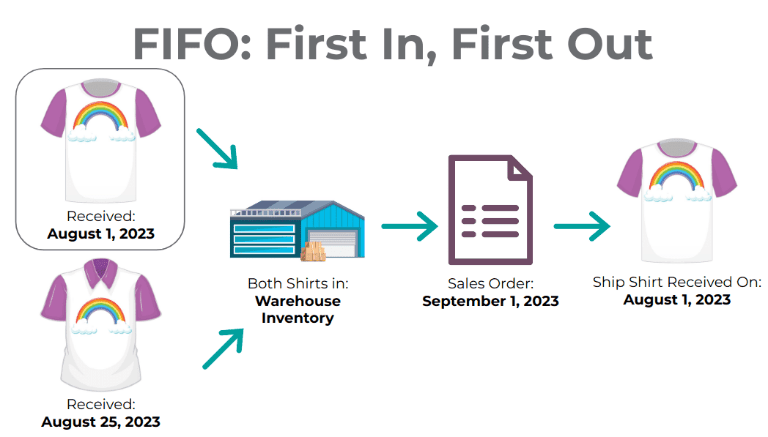
Different shipments of t-shirts, tracked by lot numbers, arrive in a business’s warehouse between August 1st and August 25th. When a customer makes an order on September 1st, the FIFO removal strategy prioritizes lots that have been in stock the longest. So, products received on August 1st are selected first for picking.
Enabling the FIFO removal strategy
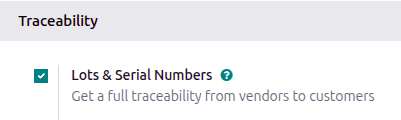
Lots and serial numbers differentiate identical products and track information like arrival or expiration dates. To enable this feature, navigate to . Under the Traceability section, check the box beside Lots & Serial Numbers.
Enable tracking by lots or serial numbers
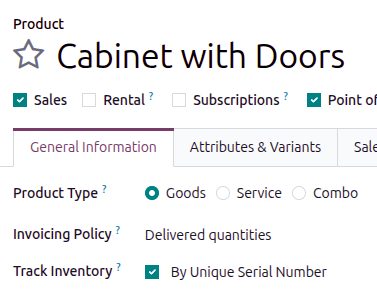
Next, ensure the intended product is tracked by lots or serial numbers by navigating to the product form through and selecting the desired product. On the product form, open the General Information tab and select the check box next to the Track Inventory field, then select either By Unique Serial Number or By Lots.
Assigning lots and serial numbers
After enabling the features, assign lot or serial numbers to products using an inventory adjustment or during reception.
Setting removal strategies
After lot or serial numbers have been assigned, set the removal strategy on the product category or storage location.
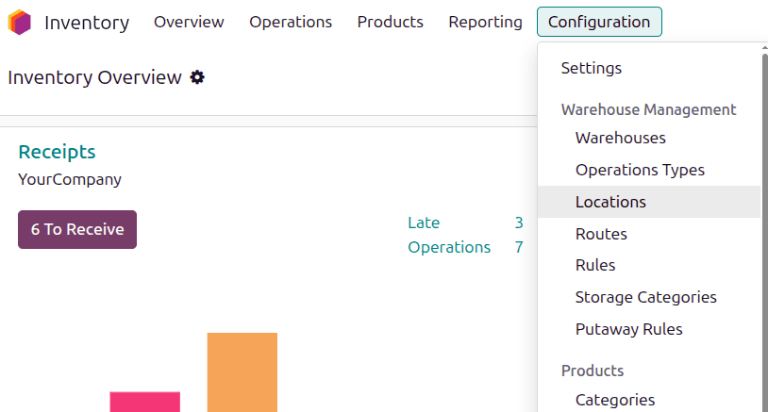
On the location
Open . Select the desired location. On the location form, under the Logistics heading, select First In First Out (FIFO) from the list of removal strategies.
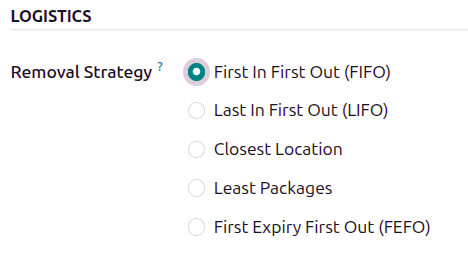
On the product category
Configure removal strategies on product categories by going to and selecting the intended product category. Next, in the Force Removal Strategy field, specify First In First Out (FIFO).
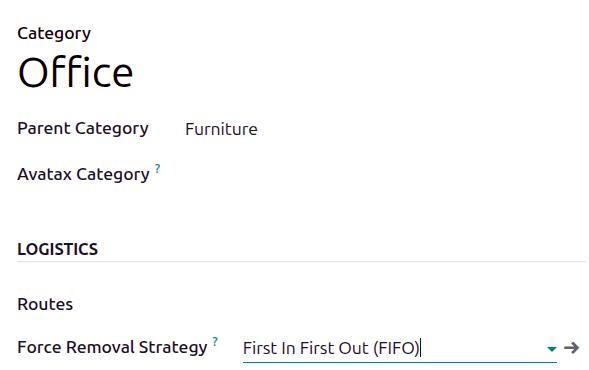
Important
When there are different removal strategies applied on both the location and product category for a product, the value set on the Force Removal Strategy field set on a product category form is applied as top priority.
Arrival date
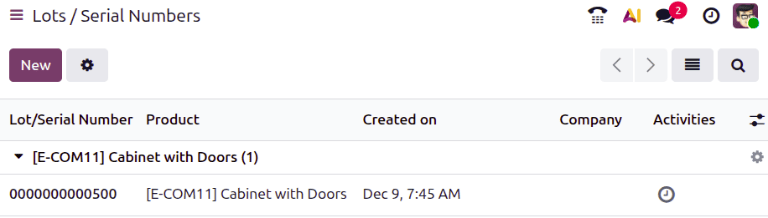
To see the product lot or serial number that arrived in inventory first, navigate to . By default, this list is grouped by location. If necessary, remove that grouping and group by product instead.
Then, select the (right-pointing arrow) icon on the left of a product line, in order to reveal a list of the product’s lots or serial numbers that are in stock. The Created on field shows the lot/serial number creation date, which the system considers to be the arrival date.
Example
Serial number 0000000000500 of the product, Cabinet with Doors, arrived on December 9th, as
displayed in the Created on field.
Workflow
To understand how FIFO rotates products out, consider the following example, focusing on three lots of white shirts.
The shirts are from the All/Clothes category, where FIFO is set as the Force Removal Strategy.
The white shirts are tracked By Lots in the Inventory tab of the product form.
The following table represents the on-hand stock and lot number details of white shirts.
LOT1 |
LOT2 |
LOT3 |
|
|---|---|---|---|
On-hand stock |
5 |
3 |
2 |
March 1 |
April 1 |
May 1 |
To see the removal strategy in action, create a delivery order for six white shirts by navigating to the and creating a new quotation.
After clicking Confirm on the sales order, a delivery order with the oldest lot numbers for shirts are reserved, using the FIFO removal strategy.
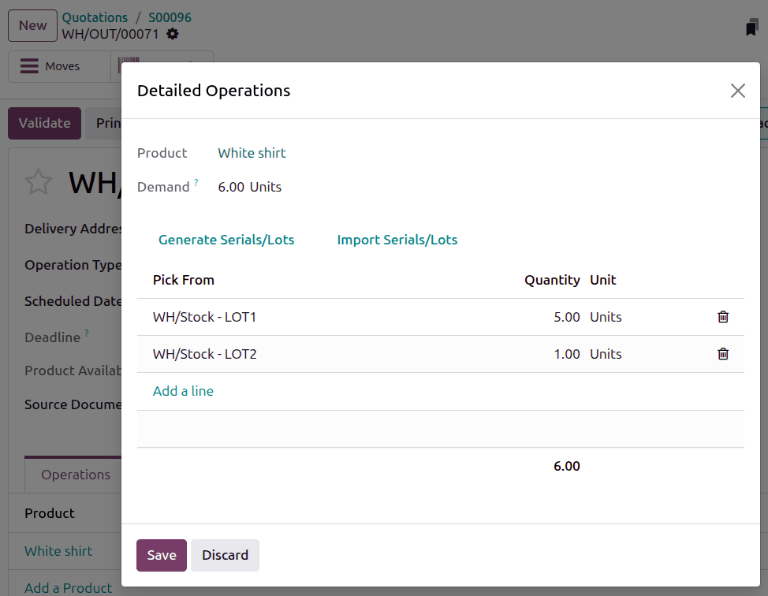
To view the detailed pickings, click the Details link, located on the far-right of the white shirt’s product line in the Operations tab of the delivery order. Doing so opens the Detailed Operations pop-up window.
In the Detailed Operations pop-up window, the Pick From field displays where
the quantities to fulfill the Demand are picked from. Since the order demanded six
shirts, all five shirts from LOT1, and one shirt from LOT2, are selected.