Units of measure
In some cases, handling products in different units of measure is necessary. For example, a business can buy products from a country that uses the metric system, and then sell those products in a country that uses the imperial system. In that case, the business needs to convert the units.
Another case for unit conversion is when a business buys products in a big pack from a supplier, and then sells those products in individual units.
Odoo can be set up to use different units of measure (UoM) for one product.
Configuration
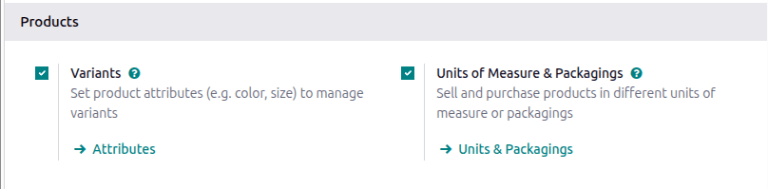
To use different units of measure in Odoo, first go to , and under the Products section, activate the Units of Measure & Packagings setting. Then, click Save.
Configure units of measure
To set units of measure on a product, first go to and select a product to open its product form page.
Inventory unit of measure
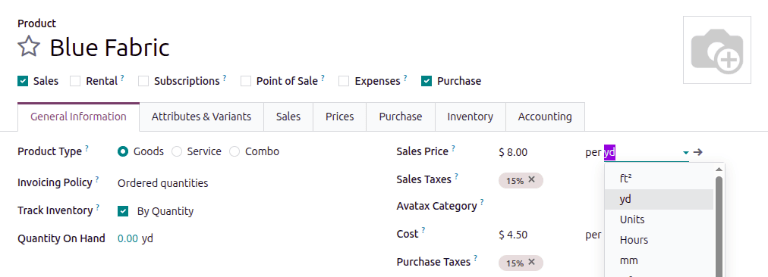
The inventory unit of measure specifies how inventory is measured. For example, track inventory of blue fabric in yards. This unit of measure is also used to track internal transfers.
To specify what unit the product is inventoried in, update the second field of the Sales Price or Cost fields.
Important
The Sales Price and Cost units of measure cannot be updated independently of each other. When one unit of measure is updated, the other unit of measure automatically updates to use the same unit of measure.
Sales unit of measure (packagings)
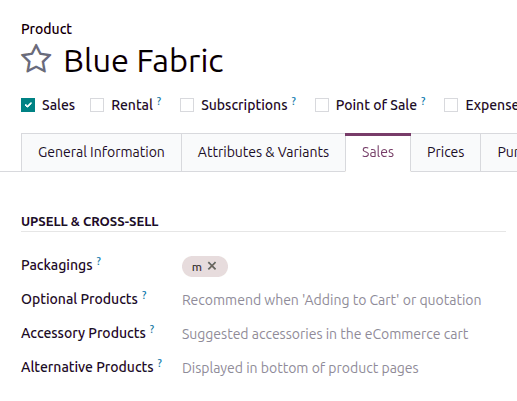
Units of measure that the product is sold in are considered packagings. To define these packagings, open the Sales tab of the product, and then in the Upsell & Cross-Sell section, add a packaging to the Packagings field. Multiple packagings can be specified for each product.
See also
Purchase unit of measure
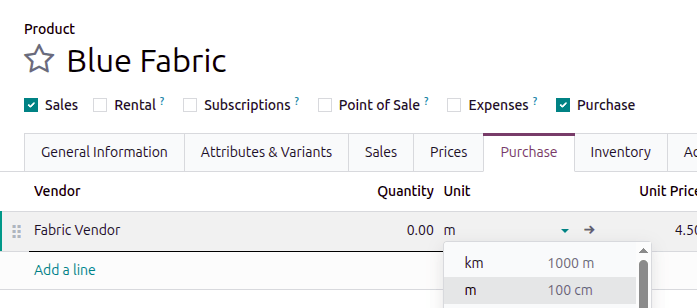
Units of measure that the product is purchased in are defined in the Purchase tab of the product. Purchase orders can be created in these units of measure after they are defined in the vendor price list. Purchase units of measure must be in the same category as the default unit of measure.
Unit conversion
Odoo automatically converts unit measurements when products have different UoMs and purchase UoMs.
This occurs in various scenarios, including:
Vendor orders: purchase UoM on purchase orders (POs) converts to UoM on internal warehouse documents
Automatic replenishment: generates POs when the stock levels of a product (tracked in UoM) dips below a certain level. But, the POs are created using the purchase UoM
Sell products: if a different UoM is used on the sales order (SO), the quantity is converted to the warehouse’s preferred UoM on the delivery order
Buy products in the purchase UoM
When creating a new request for quotation (RFQ) in the Purchase app, Odoo pulls the unit that the vendor prefers to use, defined in the Unit field of the vendor line in the Purchase tab of the product. The unit the vendor prefers can be different from the unit your company prefers to use. If needed, manually edit the Unit value on the RFQ.
After the RFQ is confirmed into a PO, click the Receipt smart button at the top of the PO.
Odoo automatically converts the purchase unit of measure into the product’s sales/inventory unit of measure, so the Demand column of the delivery receipt shows the converted quantity.
Example
When the product’s purchase Unit is m (meters), and its inventory unit of measure
is yard, the PO shows the quantity in meters, and the receipt (and other internal warehouse
documents) shows the quantity in yards.
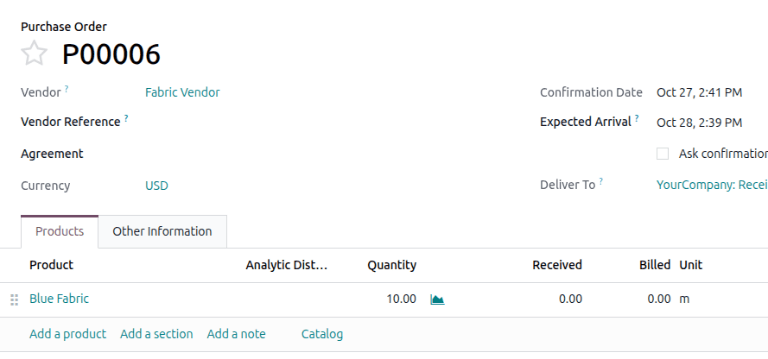
An order of 10 quantities is placed using the purchase “Unit”: m.
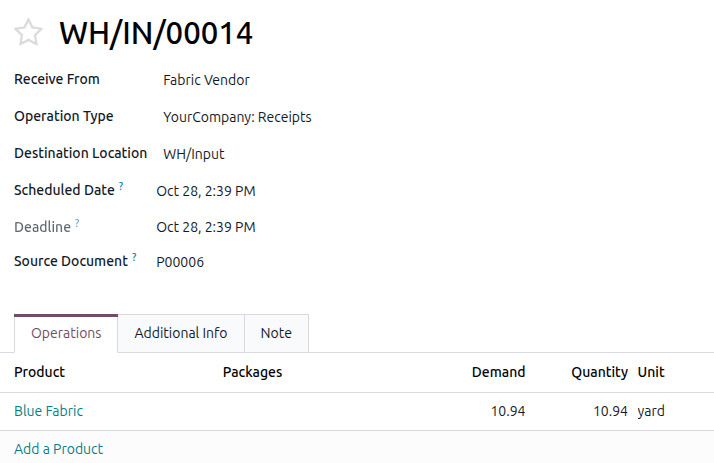
Upon warehouse receipt, the recorded quantities are in the internal “Unit”: yards.
Replenishment
A request for quotation for a product can also be generated directly from the product’s Forecasted Report using the Replenish button. To open the Forecasted Report, click the Forecasted smart button on the product form.
After clicking Replenish, a Product Replenish box pops up. The purchase unit of measure can be manually edited in the Quantity field, if needed. Then, click Confirm to create the RFQ.
Important
A PO can only be automatically generated if at least one vendor is listed in the product form’s Purchase tab.
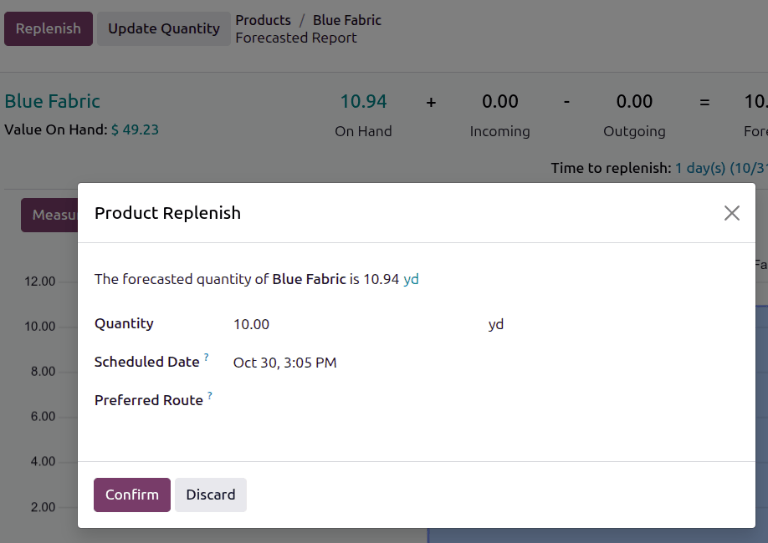
Navigate to the created PO by scrolling down to the Forecasted Inventory section, and in the Requests for quotation line, click the RFQ reference number to open the draft RFQ. If necessary, the purchase UoM can be edited directly on the PO.
Sell in a different UoM
When creating a new quotation in the Sales app, Odoo automatically uses the product’s specified unit of measure. If needed, the Unit can be manually edited on the quotation.
After the quotation is sent to the customer, and confirmed into a sales order (SO), click the Delivery smart button at the top of the SO. Odoo automatically converts the unit of measure into the product’s inventory unit of measure, so the Demand column of the delivery shows the converted quantity.
Example
When the product’s sales Unit is m (meters), and its inventory unit of measure is
yard, the SO shows the quantity in meters, and the delivery (and other internal warehouse
documents) shows the quantity in yards.
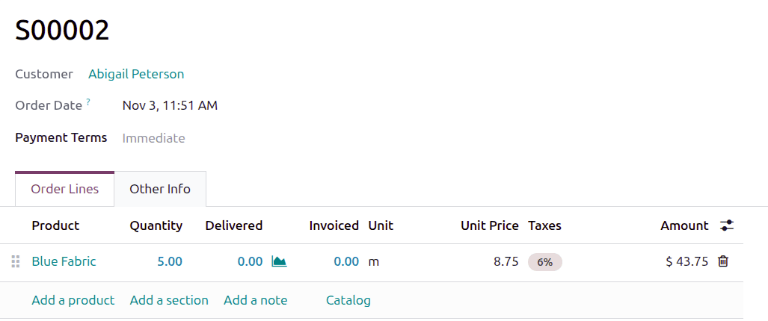
An order of 5 quantities is placed using the sales “Unit”: m.
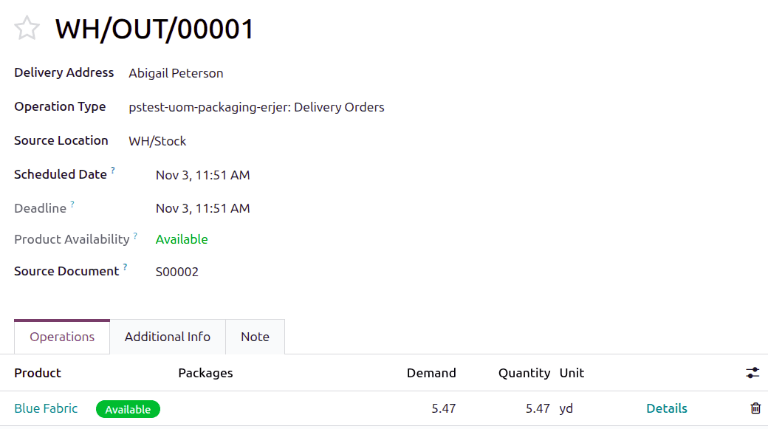
Upon warehouse delivery, the recorded quantities are in the internal “Unit”: yards.
Create custom units of measure
Create custom units of measure by going to . Each unit of measure can also use a reference unit to convert between different units of measure.
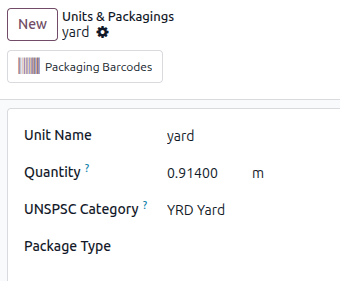
To create a new unit, click the New button. Specify a unit name. If you want to convert between units, specify a quantity and a reference unit of measure to convert between. If applicable, enter a UNSPSC Category, which is a globally recognized code managed by GS1, that must be purchased in order to use.
Example
You will be purchasing fabric in terms of yards or meters. Specify that one yard is equal to
0.9144 of its reference unit, m, in the Quantity field.