Closest location removal
For the Closest Location removal strategy, products are picked based on the alphanumeric order of storage location titles.
The goal of this strategy is to save the warehouse worker from taking a long journey to a farther shelf when the product is also available at a closer location.
To understand location sequence in the closest removal strategy, consider the following example:
Example
A product is stored in the following locations: Shelf A/Pallet, Shelf A/Rack 1, and Shelf
A/Rack 2.
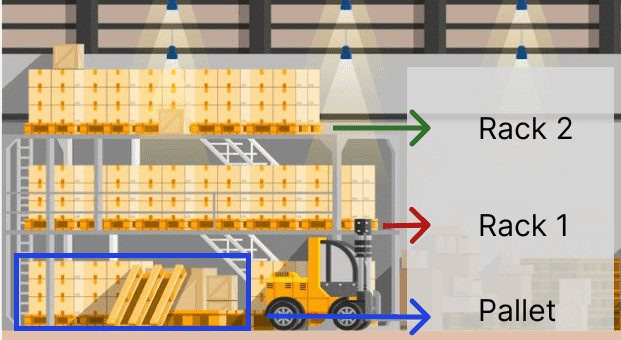
The sublocation, Pallet, is on the ground level. Products stored here are easier to retrieve,
compared to requiring a forklift to reach Rack 1 and Rack 2. The storage locations were
strategically named in alphabetic order, based on ease of access.
Enabling the Closest Location removal strategy
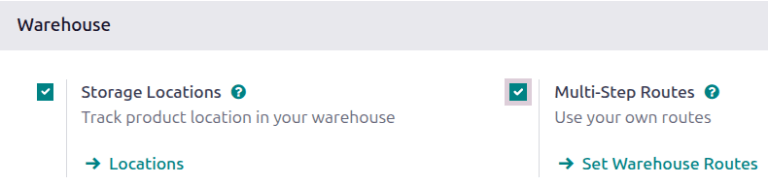
Storage locations and multi-step routes are necessary features for setting all types of removal strategies on a location. However, these features are specifically required for the closest location removal strategy since it is only applied at the location level.
To activate these features, navigate to . Under the Warehouse heading, enable the Storage Locations and Multi-Step Routes features. Be sure to Save your changes.
Configure location names
To configure location names, begin by navigating to . Then, select an existing location, or click New to create a new one, and then enter the desired name in the Location Name field.
Set the removal strategy
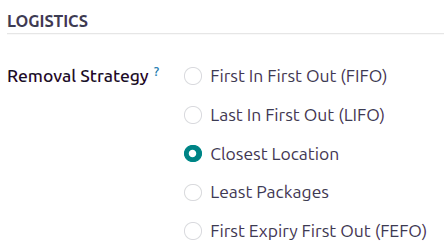
Once the locations are named in alphabetical order, based on their proximity to the output or packing location, set the removal strategy on the parent location.
To do that, in the Locations list, select the parent location of the alphabetically named storage locations.
Doing so opens the form for the parent location. In the Removal Strategy field, select Closest Location.
Example
In a warehouse, the storage location WH/Stock/Shelf 1 is located closest to the packing area,
where products retrieved from shelves are packed for shipment. The popular product, iPhone
charger is stored in three locations, WH/Stock/Shelf 1, WH/Stock/Shelf 2, and
WH/Stock/Shelf 3.
To use the closest location, set the removal strategy on the parent location, WH/Stock.
Workflow
To see how the closest location removal strategy works, consider the following example, featuring
the popular product, iPhone Charger, which is stored in WH/Stock/Shelf A/Pallets,
WH/Stock/Shelf A/Rack 1, and WH/Stock/Shelf A/Rack2.
Fifteen, five, and thirty units are in stock at each respective location.
Tip
To check the on-hand stock at each storage location, open the Locations report by clicking . Filter by On Hand, as well as product (if necessary).
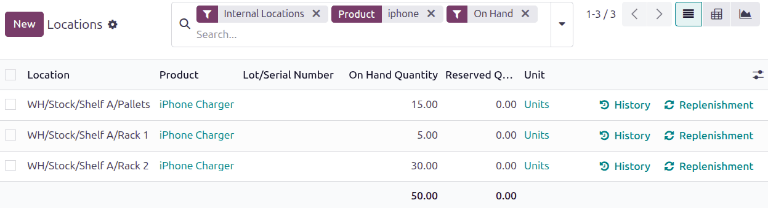
Create a delivery order for eighteen units of the iPhone
Charger by navigating to the and creating a new quotation.
After adding the products, clicking Confirm creates a delivery order that reserves items stored at the closest location, using the removal strategy.
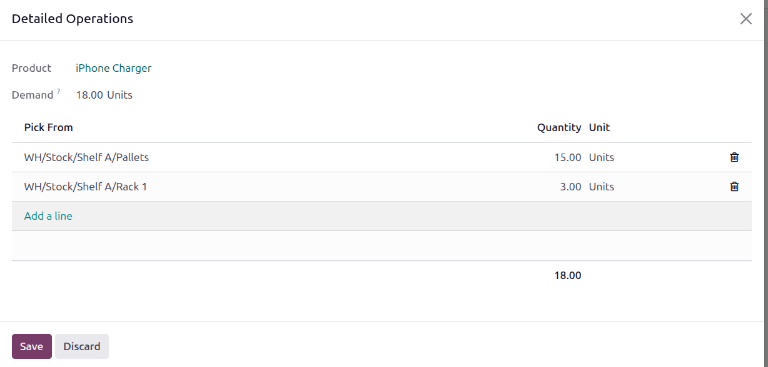
For more details about where the units were picked, click the Details link, located on the far right. Doing so opens the Detailed Operations pop-up window that displays how the reserved items were picked, according to the removal strategy.
In the Detailed Operations pop-up window, the Pick From field displays where
the quantities to fulfill the Demand are picked. All fifteen of the units stored at the
closest location, WH/Stock/Shelf A/Pallets, are picked first. The remaining three units are then
selected from the second closest location, WH/Stock/Shelf A/Rack 1.