
Reordering rules
Reordering rules are used to keep forecasted stock levels above a certain threshold without exceeding a specified upper limit. This is accomplished by specifying a minimum quantity that stock should not fall below and a maximum quantity that stock should not exceed.
Reordering rules can be configured for each product based on the route used to replenish it. If a product uses the Buy route, then a request for quotation (RFQ) is created when the reordering rule is triggered. If a product uses the Manufacture route, then a manufacturing order (MO) is created instead. This is the case regardless of the selected replenishment route.
To set up reordering rules for the first time, refer to:
To understand and optimize replenishment using advanced features, see:
Reordering rules setup
To configure automatic and manual reordering rules, complete the following:
Product type configuration
A product must be configured correctly to use reordering rules. Begin by navigating to , then select an existing product, or create a new one by clicking New.
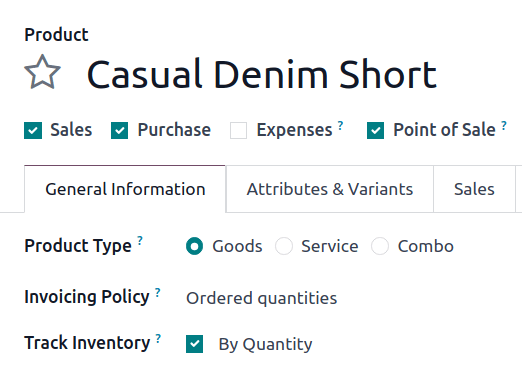
On the product form, under the General Information tab, set the Product Type to Goods, and make sure the Track Inventory checkbox is ticked. This is necessary for Odoo to track the product’s stock levels and trigger reordering rules.
Replenishment method
Next, configure the replenishment method (e.g. buy or manufacture).
If the product is purchased, install the Purchase app, and confirm that the Purchase checkbox is enabled under the product name. In the Purchase tab, add at least one vendor to the vendor pricelist. Odoo uses the vendor at the top of the list to generate RFQs when reordering rules are triggered.
See also
If the product is manufactured, install the Manufacturing app.
Next, ensure at least one bill of materials (BoM) is displayed in the Bill of Materials smart button at the top of the product form. This is necessary because Odoo only creates manufacturing orders (MOs) for products with a BoM.
If a BoM does not already exist for the product, click the Bill of Materials smart button, then click New to configure a new BoM.
See also
Create a reordering rule
To create a new reordering rule, navigate to , then click New, and fill out the following fields for the new reordering rule line item:
Product: The product that is replenished by the rule.
Location: The location where the product is stored.
Min: The minimum quantity that can be forecasted without the rule being triggered. When forecasted stock falls below this number, a replenishment order for the product is created.
Max: The maximum quantity at which the stock is replenished.
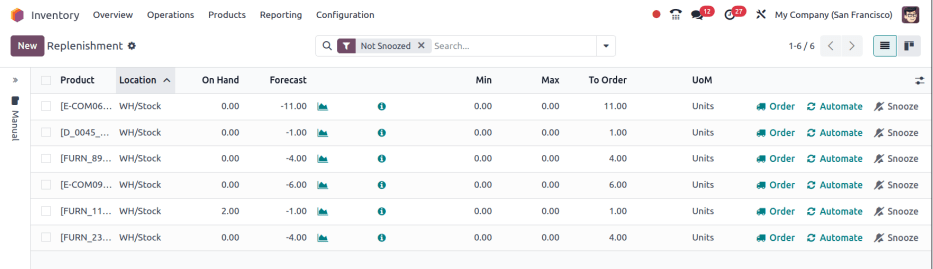
The form for creating a new reordering rule.
Tip
Reordering rules can also be created from the Reordering Rules smart button on the product form.
Note
To learn how the On Hand, Forecast, and To Order fields are calculated using on-hand quantities and future demand, see Just in time logic
For advanced usage, learn about the following reordering rule fields:
Note
The fields above are not available by default, and must be enabled by selecting the (adjust settings) icon in the far-right corner and selecting the desired column from the drop-down menu.
0/0/1 reordering rule
The 0/0/1 reordering rule is a specialty rule used to replenish a product that is not kept on-hand, each time a sales order (SO) is confirmed for that product.
Important
The 0/0/1 reordering rule is similar to the Replenish on Order (MTO) route, in that both workflows are used to replenish a product upon confirmation of an SO.
The main difference between the two methods is that the Replenish on Order route automatically reserves the product for the SO that caused it to be replenished. This means the product cannot be used for a different SO.
The 0/0/1 reordering rule does not have this limitation. A product replenished using the rule is not reserved for any specific SO, and can be used as needed.
Another key difference is that replenishment orders created by the Replenish on Order route are linked to the original SO by a smart button at the top of the order. When using the 0/0/1 reordering rule, a replenishment order is created, but is not linked to the original SO.
See the Replenish on Order (MTO) documentation for a full overview of the MTO route.
To create a 0/0/1 reordering rule, navigate to , and select a product.
At the top of the product’s page, click the Reordering Rules smart button to open the Reordering Rules page for the product. On the resulting page, click New to begin configuring a new reordering rule.
In the Location field of the new reordering rule, select the location in which replenished products should be stored. By default, this location is set to WH/Stock.
In the Route field, select the route the rule should use to replenish the item. For example, if the product should be purchased from a vendor, select the Buy route.
In the Min field and Max field, leave the values set to 0.00. In the
To Order field, enter a value of 1.00.

With the reordering rule configured using these values, each time an SO causes the forecasted
quantity of the product to fall below the Min of 0.00, the selected Route
is used to replenish the product in one-unit increments, back up to the Max of 0.00.
Example
An item is configured with a 0/0/1 reordering rule that uses the Buy route. Zero units are kept on-hand at any given time.
A SO is confirmed for one unit, which causes the forecasted quantity to drop to -1.00. This
triggers the reordering rule, which automatically creates a PO for one unit.
Once the product is received from the vendor, the forecasted quantity returns to 0.00. There is
now one unit on-hand, but it is not reserved for the SO which triggered its purchase. It can be
used to fulfill that SO, or reserved for a different order.
Multiple
The Multiple field on the replenishment report () defines the unit used when replenishing a product. Odoo rounds the ordered quantity up to the nearest multiple that meets or slightly exceeds the Max quantity set on the reordering rule. If no multiples apply, select Units.
Example
A vendor sells soda only in cases of six cans, but your company tracks quantities per can.
Setting the Multiple to 6 ensures soda is ordered in multiples of six (6, 12,
18…).
For a reordering rule with the Min = 10 and Max = 40:
If the forecasted quantity is
10, the amount To Order is30, a multiple of six that will bring the On Hand quantity to exactly the maximum.If the forecasted quantity is
8, the quantity needed to reach the max is32. But 32 is not a multiple of six, so Odoo rounds the To Order quantity up to36. This will cause the On Hand quantity to slightly exceed the maximum.

Note
If the maximum is exceeded, expect to see a warning indicating the possibility of excessive stock.
Configuration
Multiples are based on defined packagings. Only packaging types listed on the product’s vendor pricelist appear as options in the Multiple field when configuring reordering rules.
Trigger
A reordering rule’s trigger can be set to automatic or manual. While both function the same way, the difference between the two types of reordering rules is how the rule is launched:
Auto: A purchase or manufacturing order is automatically created when the forecasted stock falls below the reordering rule’s minimum quantity. By default, the Auto trigger is selected.
Manual: The Replenishment report lists products needing replenishment, showing current/forecasted stock, lead times, and arrival dates. Users can review forecasts before clicking Order.
To enable the Trigger field, go to . Then, click the (adjust settings) icon, located to the far-right of the column titles, and tick the Trigger checkbox.
In the Trigger column, select Auto or Manual. Refer to the sections below to learn about the different types of reordering rules.
Auto
Automatic reordering rules, enabled by setting the reordering rule’s Trigger field to Auto, generate purchase or manufacturing orders when either:
The scheduler runs, and the Forecasted quantity is below the minimum, or
A SO is confirmed, and lowers the Forecasted quantity of the product below the minimum.
If the Buy route is selected, then an RFQ is generated. To view and manage RFQs, navigate to .
If the Manufacture route is selected, then an MO is generated. To view and manage MOs, navigate to .
When no route is selected, Odoo selects the Route specified in the Inventory tab of the product form.
Tip
The scheduler is set to run once a day, by default.
To manually trigger a reordering rule before the scheduler runs, ensure developer mode is enabled, and select . Then, click the purple Run Scheduler button on the pop-up window that appears.
Be aware that this also triggers any other scheduled actions.
Example
The product, Office Lamp, has an automatic reordering rule set to trigger when the forecasted
quantity falls below the Min Quantity of 5.00. Since the current
Forecast is 55.00, the reordering rule is not triggered.

Manual
Manual reordering rules, configured by setting the reordering rule’s Trigger field to Manual, list a product on the replenishment dashboard when the forecasted quantity falls below a specified minimum. Products on this dashboard are called needs, because they are needed to fulfill upcoming SOs, for which the forecasted quantity is not enough.
The replenishment dashboard, accessible by navigating to , considers order deadlines, forecasted stock levels, and lead times. It displays needs only when it is time to reorder items, thanks to the To Reorder filter.
When a product appears on the replenishment dashboard, clicking the Order button generates the purchase or manufacturing order with the specified amounts To Order.

Route
Odoo allows for multiple routes to be selected as replenishment methods under the Inventory tab on each product form. For instance, it is possible to select both Buy and Manufacture, indicating to Odoo that the product can be bought or manufactured.
See also
Odoo also enables users to set a preferred route for a product’s reordering rule. This is the replenishment method (e.g., buying or manufacturing) that the rule defaults to, if multiple are available.
To specify a preferred route, begin by navigating to .
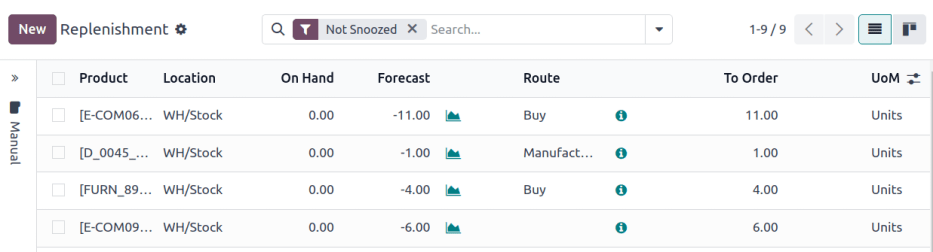
By default, the Route column is hidden. To reveal it, select the (adjust settings) icon to the far-right of the column titles, and ticking Route from the drop-down menu that appears.
Click inside of the column on the row of a reordering rule, and a drop-down menu shows all available routes for that rule. Select one to set it as the preferred route.
Important
If multiple routes are enabled for a product but no preferred route is set for its reordering rule, the product is reordered using the Buy route, then Manufacture.
Advanced uses
Pairing Route with one of the following fields on the replenishment report unlocks advanced configurations of reordering rules. Consider the following:
Vendor: When the selected Route is Buy, setting the Vendor field to one of the multiple vendors on the vendor pricelist indicates to Odoo that the vendor is automatically populated on RFQs when a reordering rule triggers the creation of a purchase order.
Bill of Materials: When the Route is set to Manufacture, and there are multiple BoMs in use, specifying the desired BoM in the replenishment report, draft manufacturing orders are created with this BoM in use.
Procurement Group: This is a way to group related POs or MOs that are tied to fulfilling a specific demand, like an SO or a project. It helps organize and track which orders are linked to a particular demand.
Note
Procurement groups link replenishment methods to demand, making smart buttons to appear — similar to how smart buttons appear when using the MTO route.
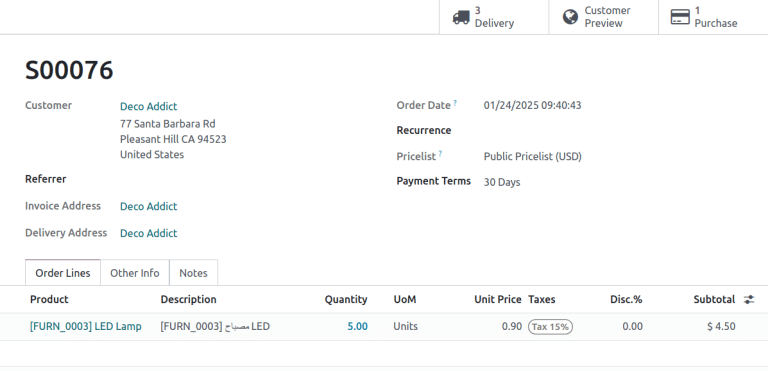
Sales order (demand) with a smart button linking to the related purchase order (replenishment method).
In the context of reordering rules:
Reordering rules do not automatically assign a procurement group, which is why there are no smart buttons that link SOs to POs, unlike the MTO route.
To enable smart buttons for products replenished by reordering rules (not MTO), with specific quantities linked to specific demands (e.g. SOs), assign a procurement group.
Without a procurement group, demands for the same product can be combined into a single RFQ, even if the reordering rule is executed multiple times for those demands. This allows for more efficient procurement by consolidating demands into fewer orders.
Selecting a procurement group in the Procurement Group field on the replenishment report ensures that all linked orders are grouped under the same demand, based on the defined route.
Exercise
How can you set the Procurement Group, Vendor, and Route fields on the replenishment report to generate a single RFQ for five different products in sales order SO35, given they share the same vendor, Azure Interior, and ensure other demands for these products are handled separately?
Set the Procurement Group to
SO35, in the reordering rule for all five products. This groups the demands forSO35in the same RFQ or MO.Set the Vendor to
Azure Interiorto ensure the RFQ is created for the same supplier.Set the Route to Buy to generate an RFQ.
Click the Order button to generate a single RFQ for the five products tied to
SO35.
After placing the order, removeSO35from the Procurement Group field of the five products’ reordering rules. This ensures future demands for these products are managed separately and assigned to different RFQs (the usual behavior).
See also
Horizon days
Horizon days allow users to extend the time window between today’s date and the forecasted date when calculating for the forecasted quantity. This features allows users to plan and restock inventory proactively, rather than following a just-in-time approach. The feature is meant to help users plan replenishment in advance by increasing the forecasted date.
Since horizon days are only meant to be used with manual reordering rules, find details about the feature in the Replenishment report article.
Note
Horizon days are configured on a company level.
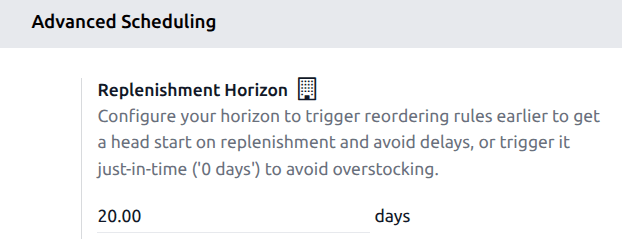
The default horizon days setting can be set or updated by navigating to the . Enter the desired number of days in the Replenishment Horizon field, and click Save.
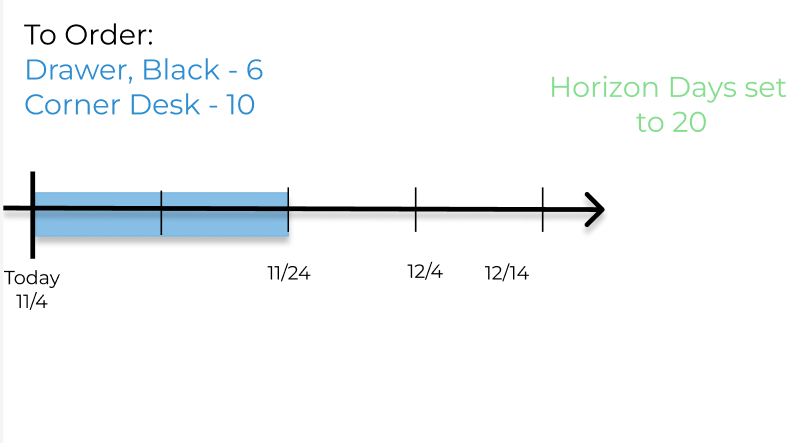
Example of how horizon days affect replenishment planning
On the Replenishment report, there are currently two products listed due for reordering: Drawer,
Black and Corner Desk. This is based on their current level of on-hand stock, and their
forecasted stock level. The default horizon days is set as 20.
However, by extending the horizon days to 30, an additional product is added to the list.
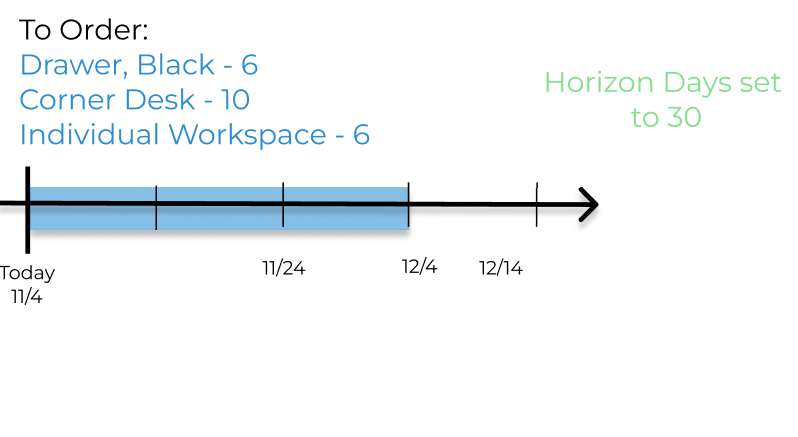
This is because the additional product, [FURN_0789] Individual Workplace, has a delivery scheduled
in twenty-nine days, at which point their on-hand stock levels will fall below the minimum needed
on-hand.